How to photograph your card
Two minutes of setup makes the read on corners, edges, surface and centering much more accurate. Here's what works best.
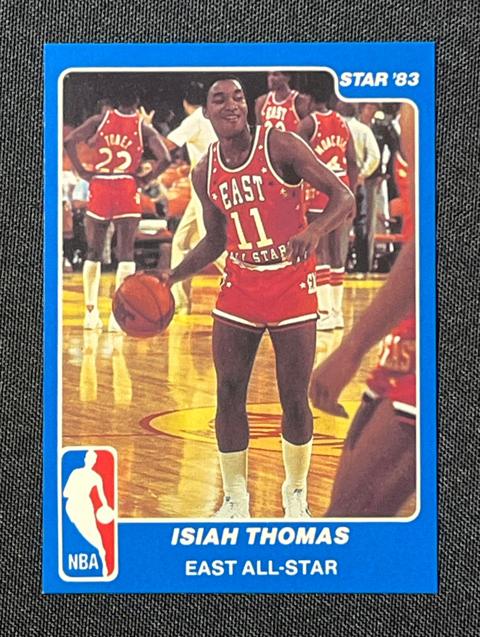
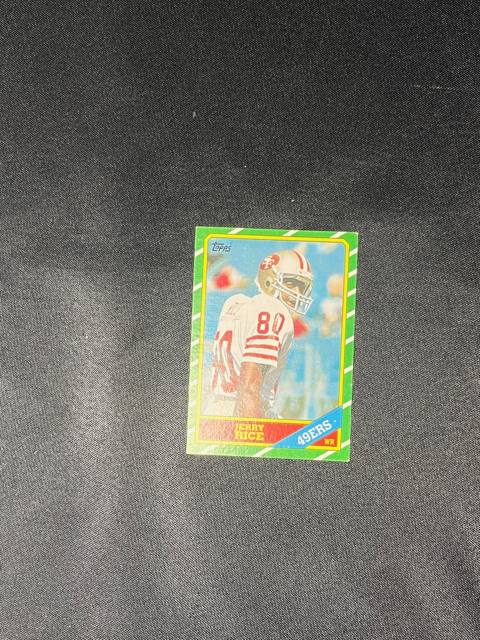
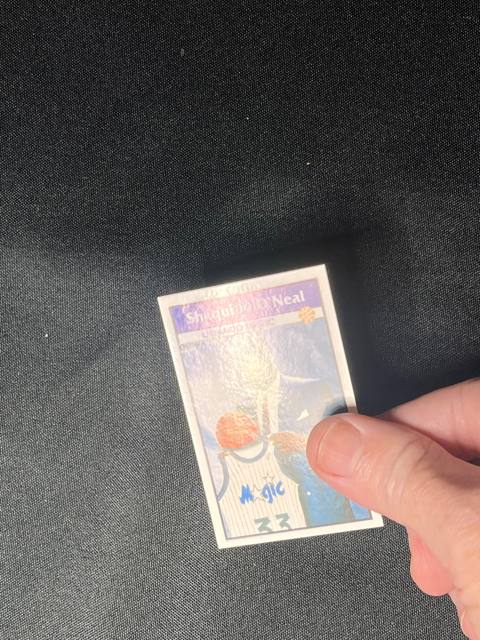
7 keys to great results
- 1Take it out of the sleeve or top loader.Plastic reflects light and hides edges and corners.
- 2Lay it flat on a plain, dark surface.A dark cloth, mouse pad or t-shirt works well. Nothing else in the photo: no packs, slabs or hands.
- 3Fill most of the photo with the card.The card should take up most of the screen, not a quarter of it. Move closer, or use your camera's zoom buttons (2×, 3×, 5×): those switch to a real lens, and from a stand they're ideal. Avoid pinch-zooming way past them; that just enlarges the picture and blurs the corners.
- 4Shoot straight down.Hold the phone flat above the card so all four edges look square. A tilted photo throws off the centering read.
- 5Light from the side, not overhead. No flash.A window or a lamp off to one side is ideal. Ceiling lights straight above cause glare.
- 6Check for glare before you shoot.Look at the screen. If part of the card looks washed out or shiny, or you can see the reflection of an overhead light, tilt the phone a little or move the light.
- 7Hold steady and tap to focus.Tap the card on your screen, wait a beat, then take the picture.
Then do the back
Same rules, same spot. The back matters for centering and for spotting stains or writing.
What the app checks for you
As soon as you pick a photo, Slab or Not looks for glare, blur, a card that's too small, a dark photo, or edges it can't find. If something's off you'll see a note with a Retake button. You can always keep the photo, but fixing it usually gives a better answer.
Optional: the size check
For older cards where trimming is a worry, take one extra photo with a modern standard card (any common card) lying right next to yours, touching edges. The app measures your card against it and flags anything that's smaller than it should be.
Good to know: Slab or Not gives an honest opinion based on your photos and recent sales. It isn't a grade, and no photo can catch everything a grader sees in hand. Details.
Check a card